tedBase - System User Guide - V2.1
Jan 2021 Rod Balgarnie
Quick Links
What is tedBase
tedBase is your gateway to all centralised ted internal systems all through a single login.
It is responsible for all user management including system roles and Procure cost departments.
Procure - All company purchase requests for products, travel and product subscriptions
Procure Purchasing - Admin system for all purchasing requests
Whereabouts - Scheduling calendar and room booking
tedSpaces - ted Zoom virtual meeting rooms
CMMOMS - Cheeky monster market order management system
Retail Sampling - Merchandise products management system
Accessing tedBase
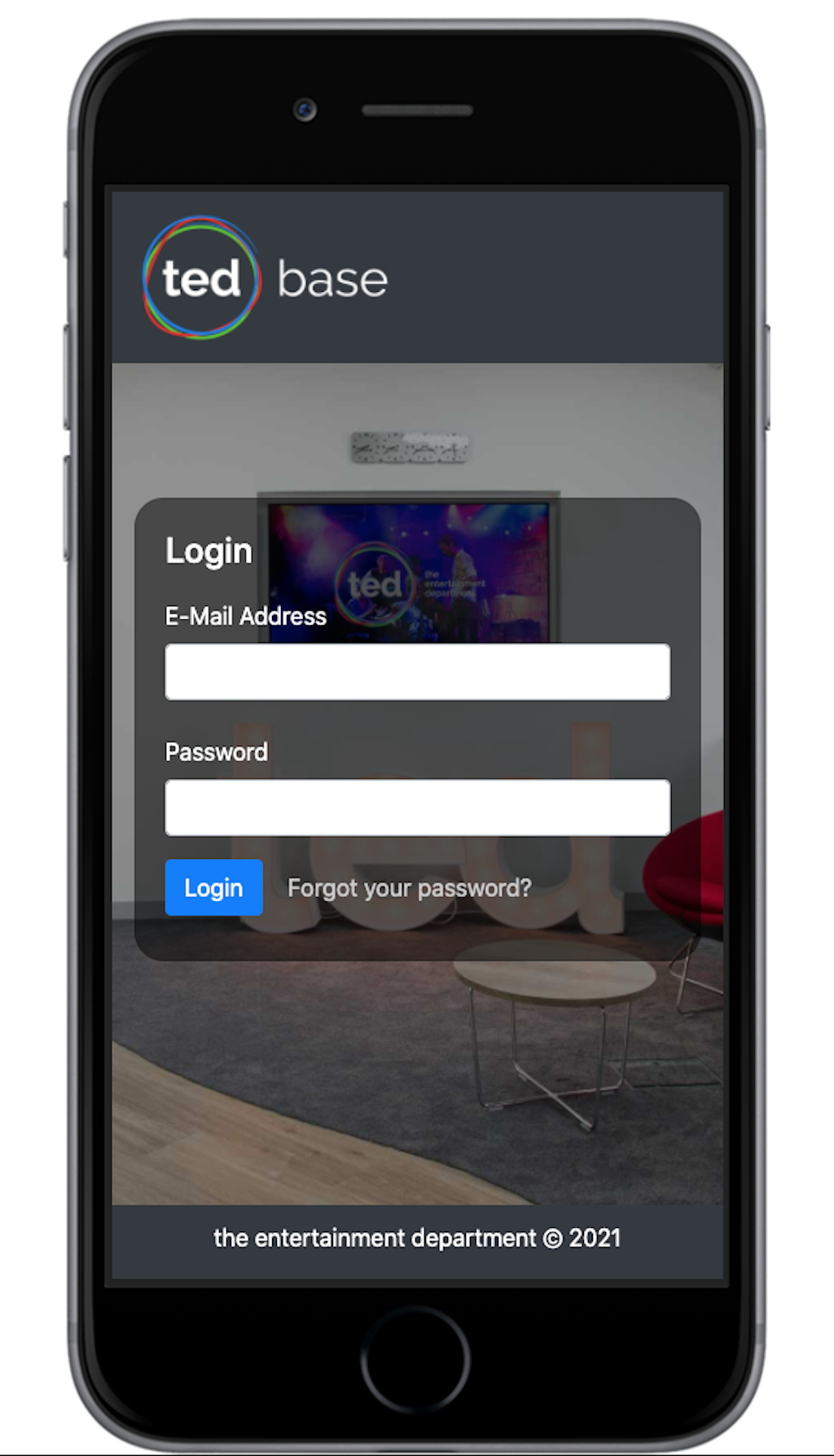
tedBase can be accessed though your web browser and is supported on mobile devices
The recommended browsers are Safari or Chrome for Mac and Microsoft Edge or Chrome for PC.
Note: Microsoft Internet Explorer is not supported.
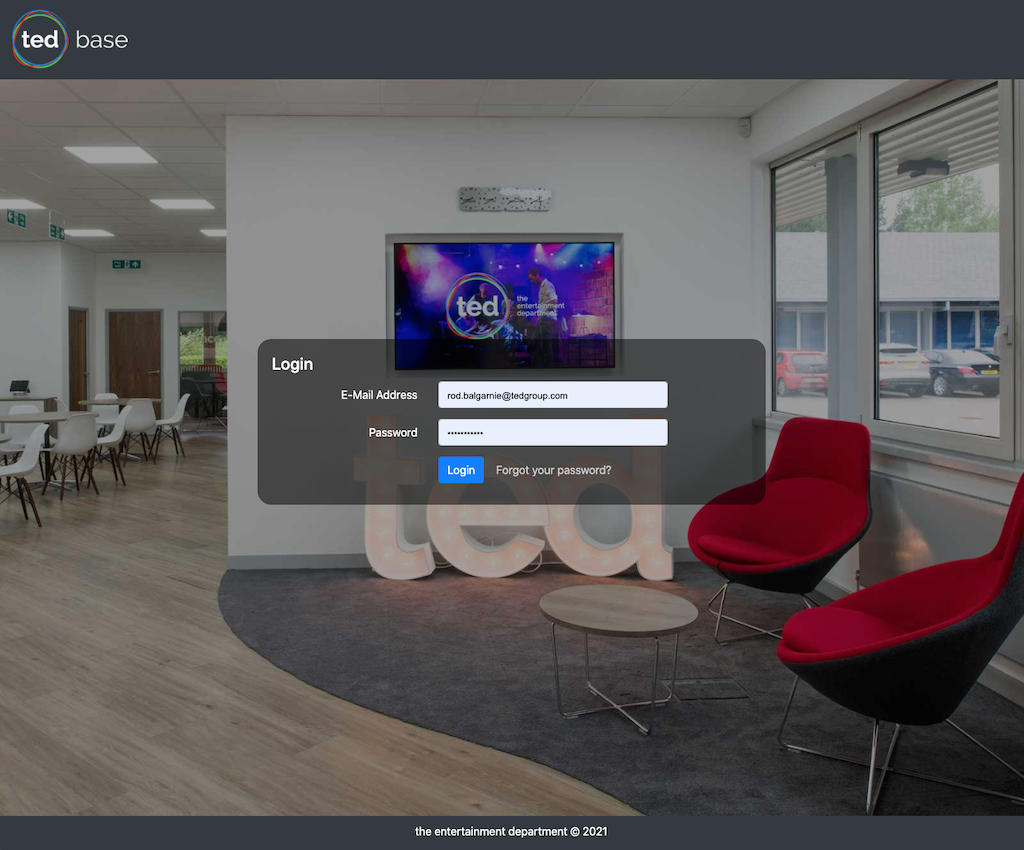
Login at - https://devtedbase.com using your ted email and supplied password Note: All previous tedBase passwrods are still valid on the new release.
Resetting your password
It is recommended that for security you change your password on a regular basis and must be of a minimum length of 8 characters.
To change your password click 'Forgot your Password' and enter your sign in email address when prompted.
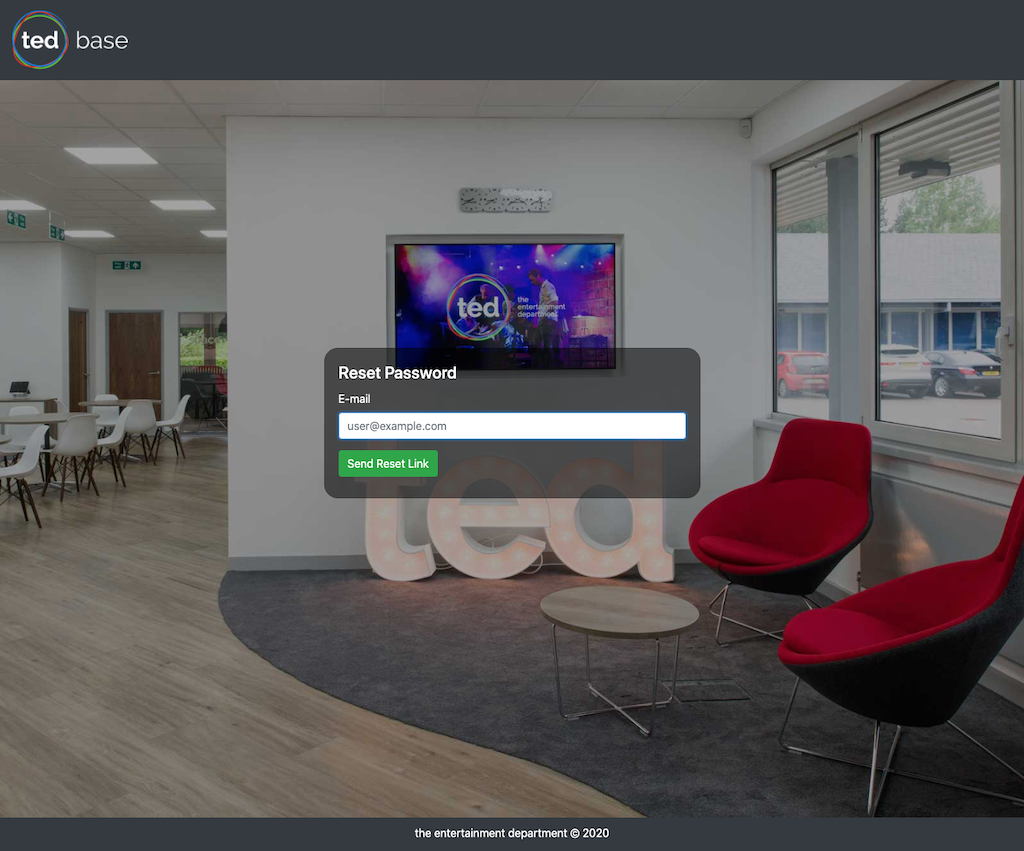
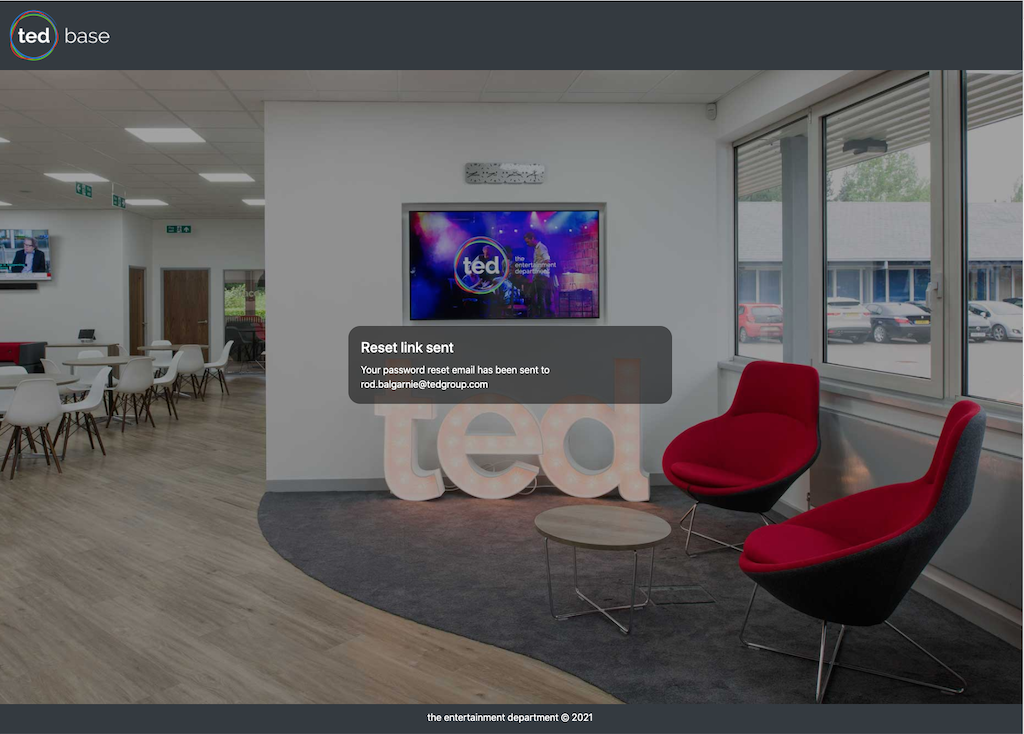
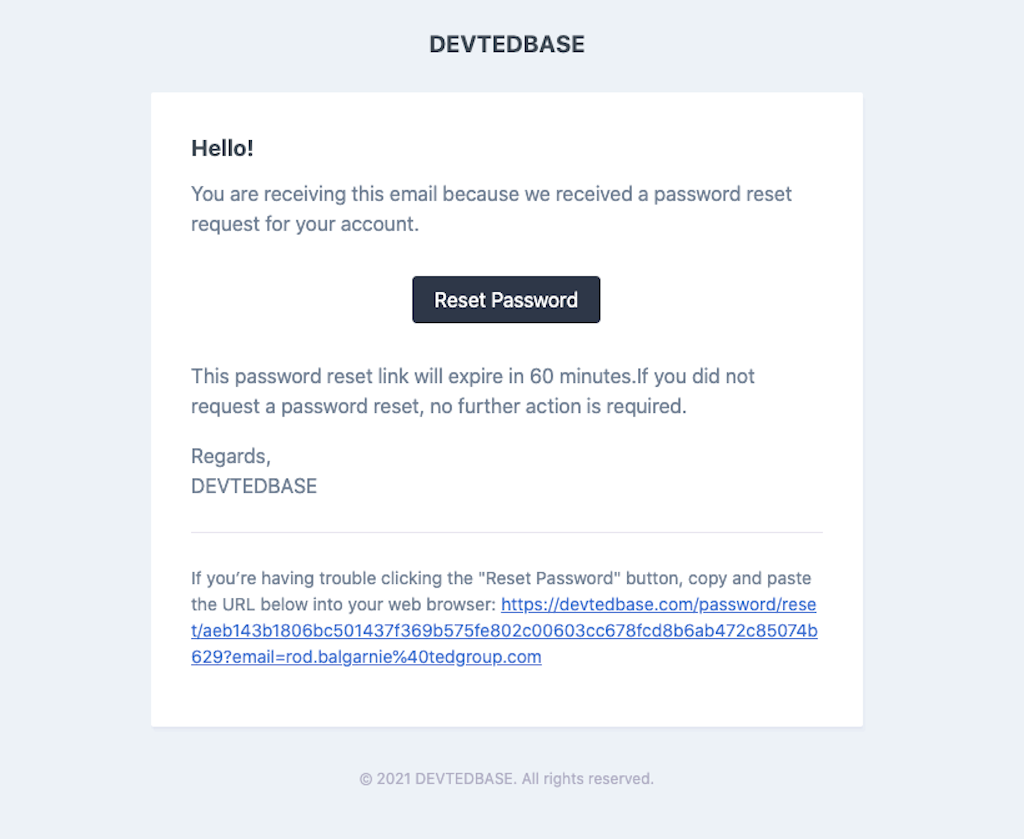
A password reset email will be sent to the email you entered with a link to follow
If you see the message 'Email not recognised' then contact Rod.
Note: If you do not receive the reset email in your inbox please check your Junk folder.
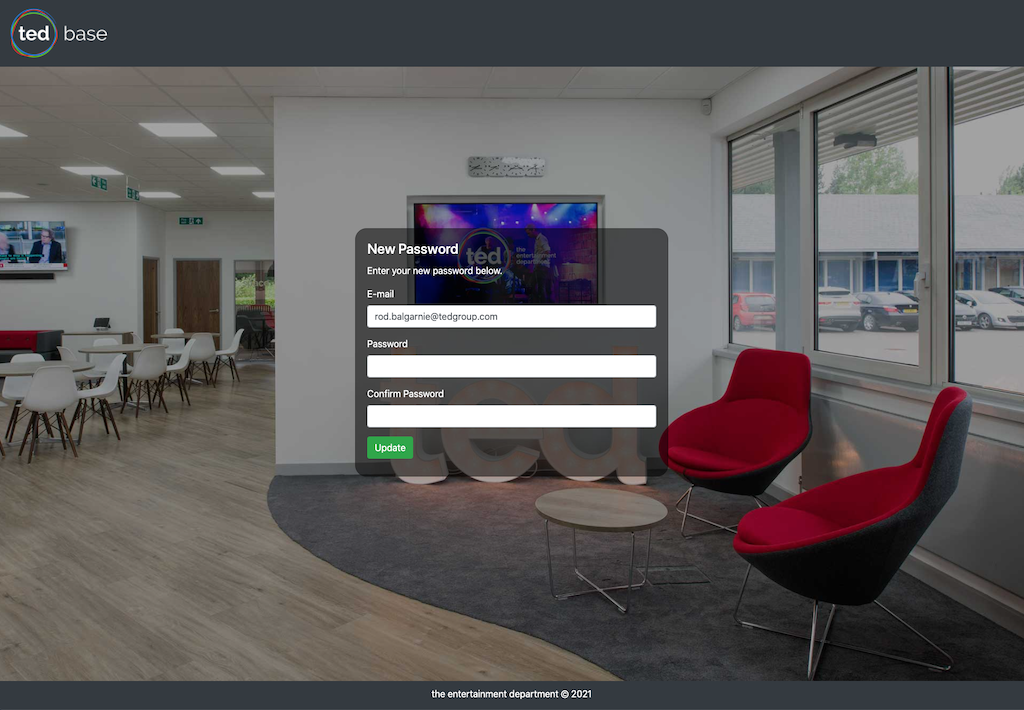
Enter your new password and confirm to reset your password then login with this new password at the login prompt.
tedBase User Management
If you are a tedBase User Admin then you can access the user management pages by selecting 'Users' from the main menu
Users can be displayed by department or by using the search box.
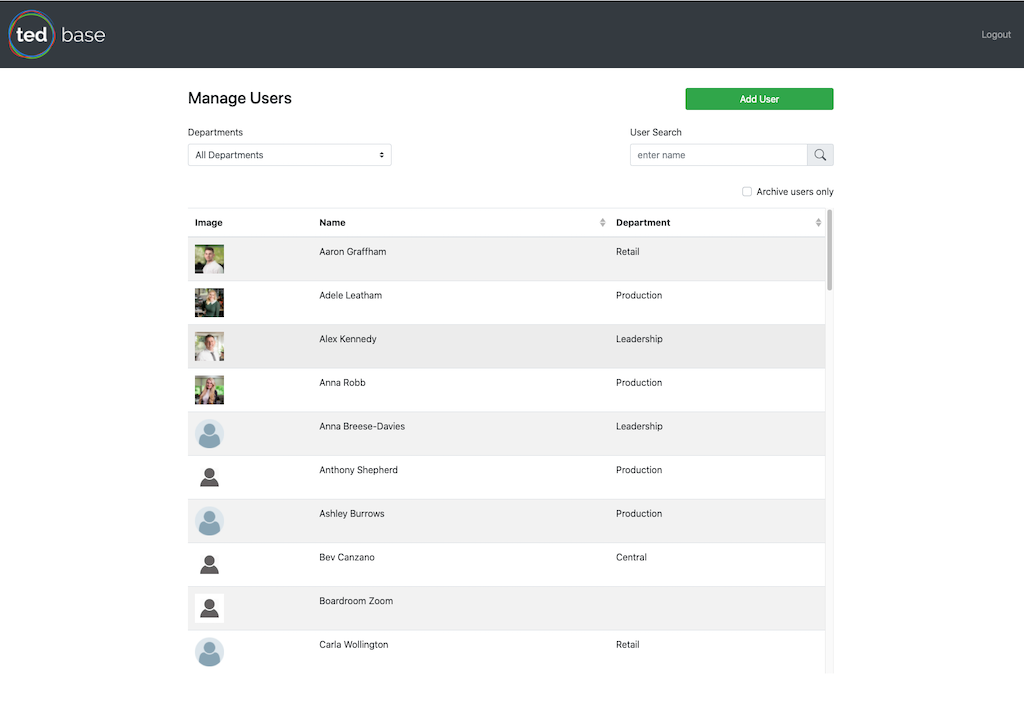
Creating a new user
Click the 'Add User' button and complete the following fields:
- First Name
- Last Name
- Department
- Image - To add an image click the 'Browse' button and select profile image from your computer
Note: You can use the rotate icon to rotate the image if needed
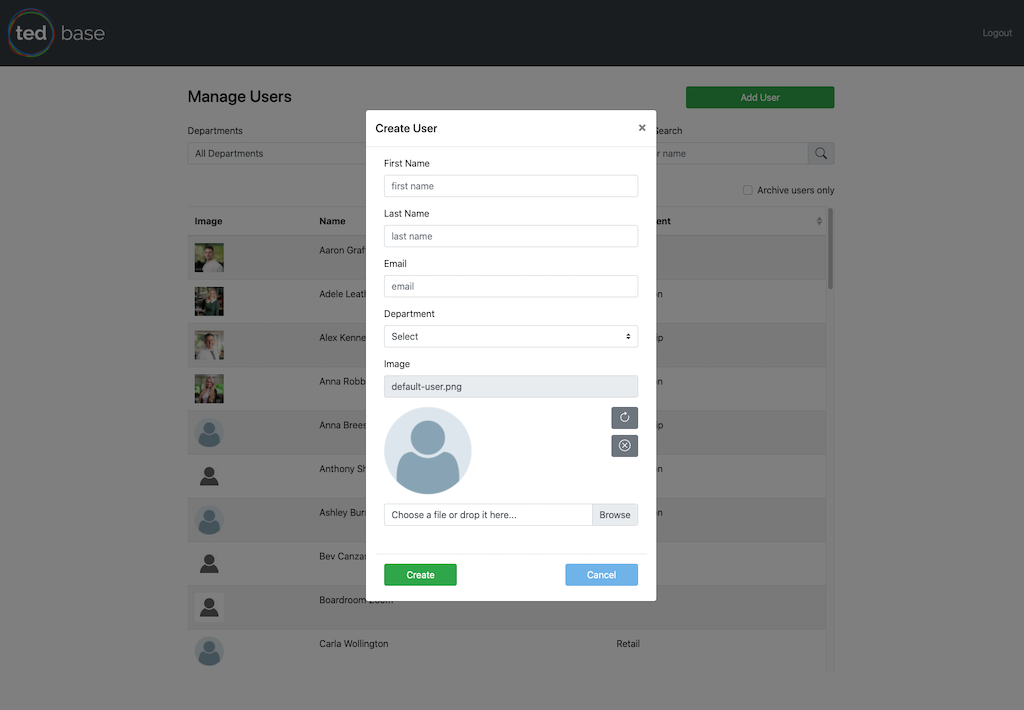
After creating a new user select the user to edit to set their system access roles and Procure cost departments
Editing a user
To edit an existing user select the user from the main Users page
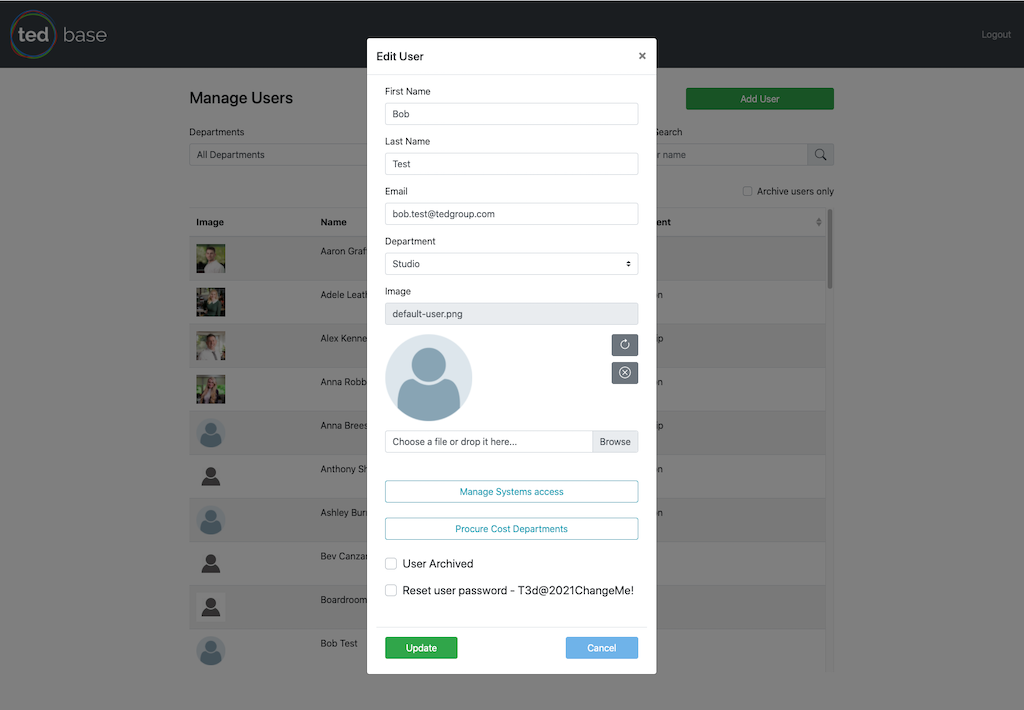
Company Leavers
When a user leaves ted then it is important to remove their access to all ted systems
This is acheived by marking the user as 'Archived' and this will disable their login account and remove their name from being displayed in all systems
Reset Password
Selecting this option will reset the selected user's password to - T3d@2021ChangeMe!
Managing access to systems
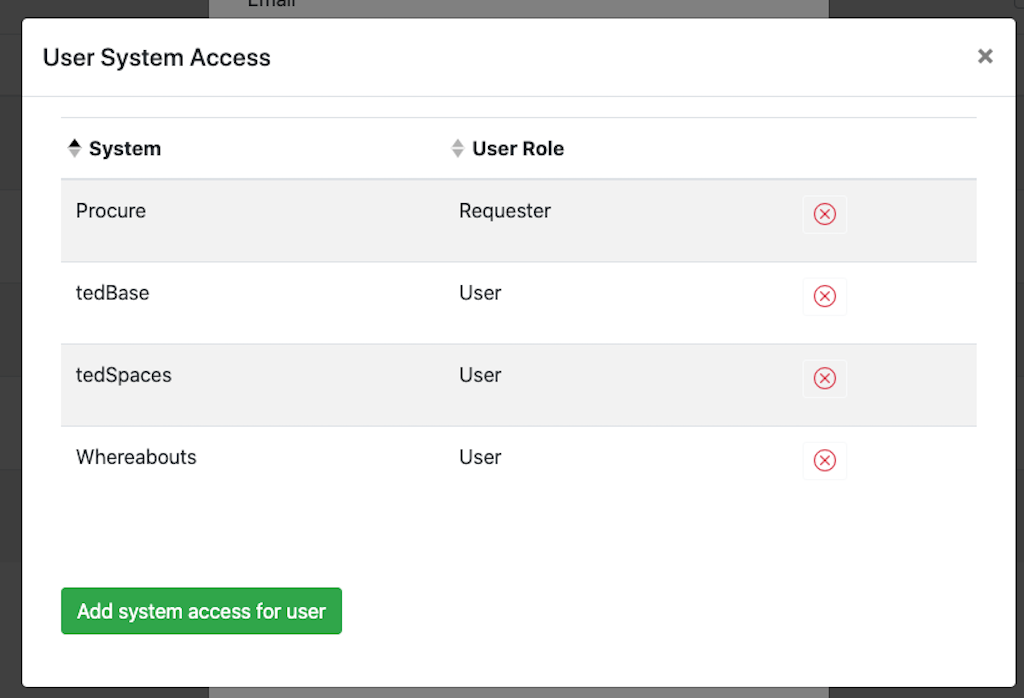
In order to access any of the systems then each user must have the relevant User Role added. For example to raise purchase requests on Procure then a user must have the 'Procure - Requester' role
Select the 'Manage Systems Access' button to show the user role popup

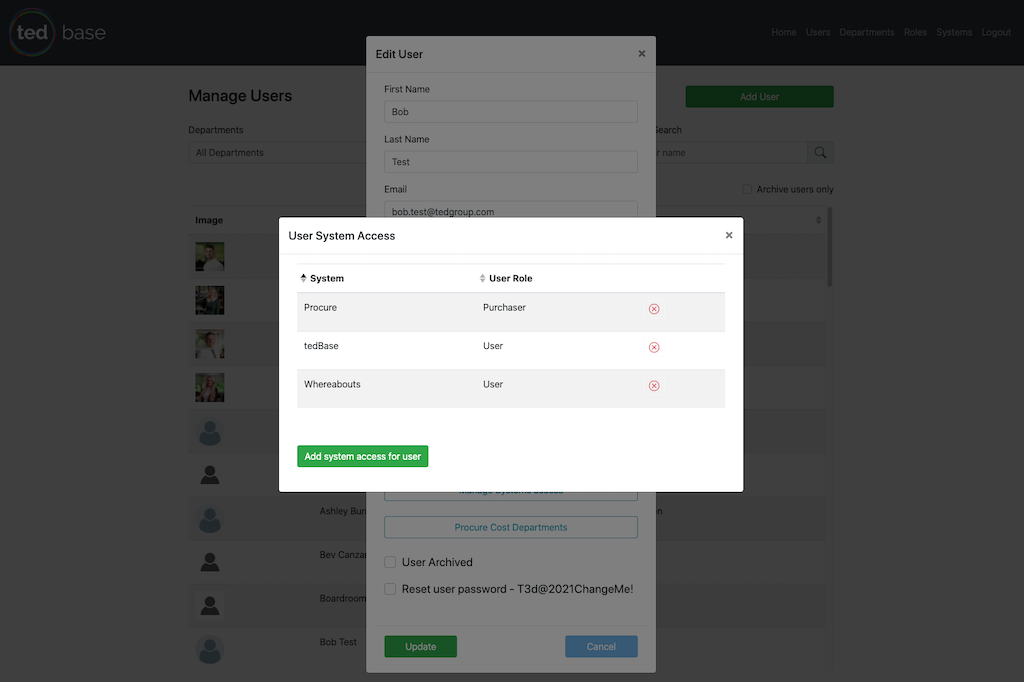
To add a new role then select 'Add System Access for User' and select the relevant system and role.
To remove a currently assigned role - click the red delete icon against the role and confirm deletion.
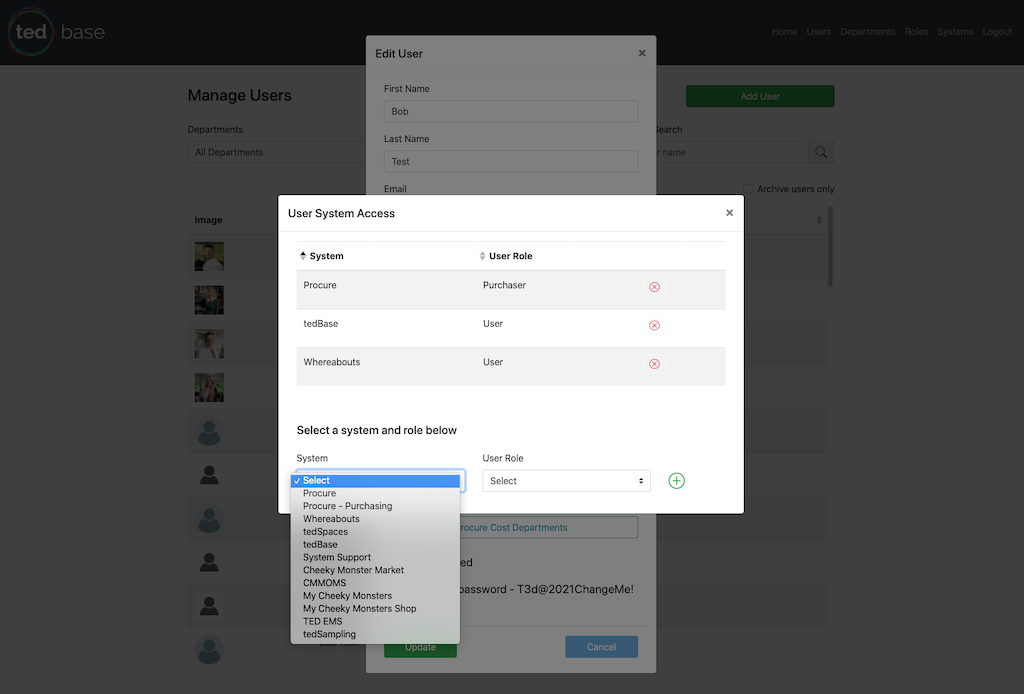
tedBase Roles
- User
- User Admin
- System Admin
Procure Roles
- Requester
- Approver
- Purchaser
Note: If a user is both a Requester and an Approver then they need both roles added
Procure Purchasing Roles
- Purchaser
- System Admin
Whereabouts Roles
- User
- HOD Studio - The HOD roles allow the user to manage all events for any user in that department
- HOD Talent
- HOD Central
- HOD Retail
- HOD AV
- HOD Production
- HOD Leisure
- Group Admin - Manage public Whereabouts user groups, activities, rooms and room bookers
tedSpaces Roles
- User
Minimum user roles required
Every user requires the following User Roles to access tedBase, Procure, tedSpaces and Whereabouts
Procure Cost Departments
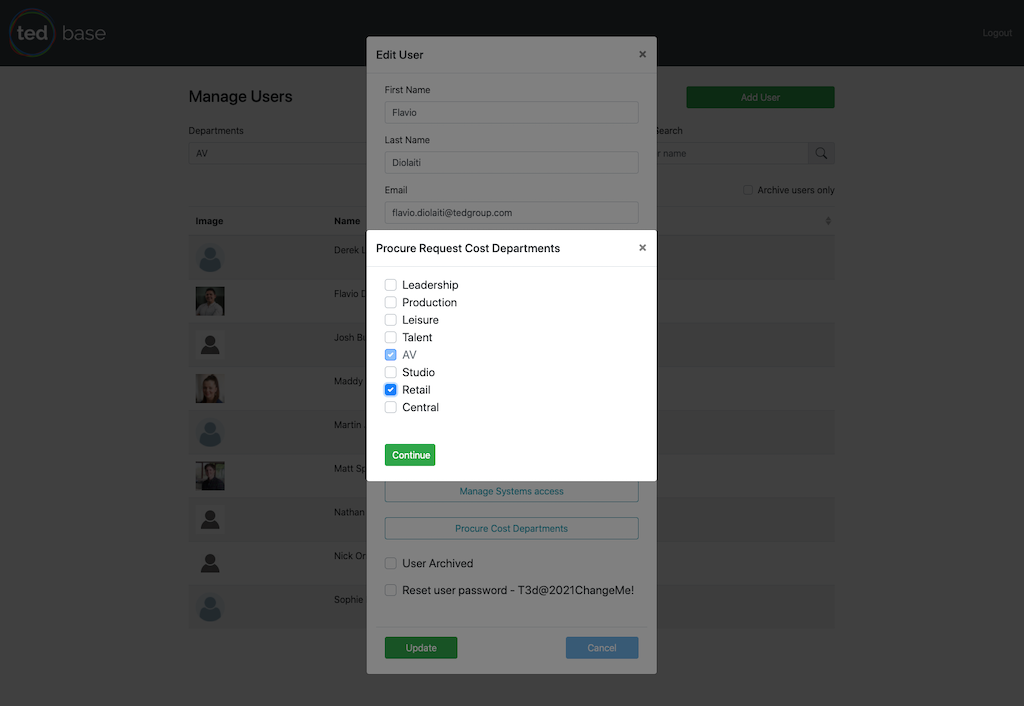
By default a user will only be able to use the Cost Codes for their department when creating a purchase request in Procure. However if they need to be able to use additional department Cost Codes then these can be managed by selecting the 'Procure Cost Department' button.
For example a user in the AV department could also have access to the Retail Cost Codes

System Administration
These pages are only available to a user with the role of - tedBase System Admin
Manage Departments
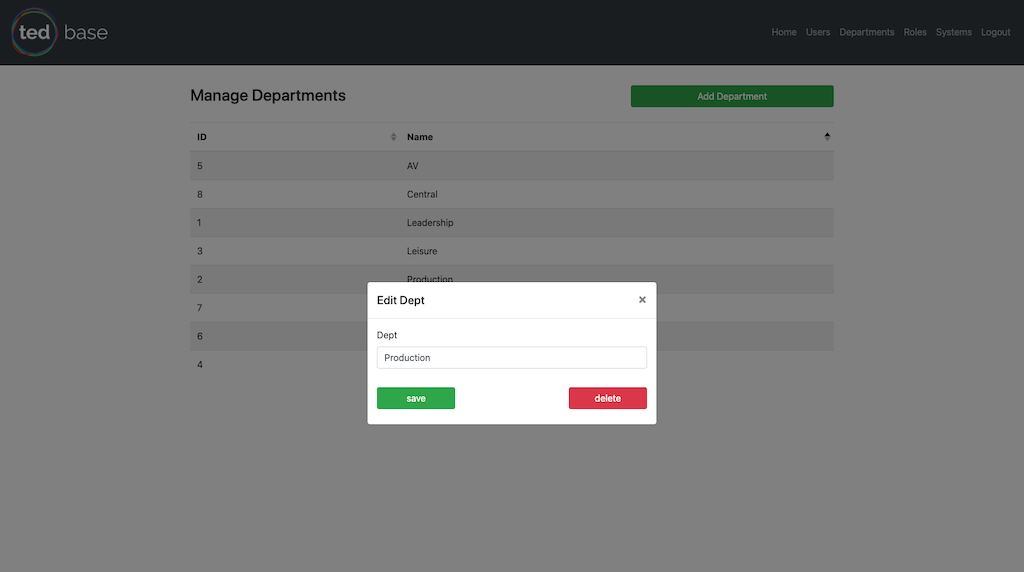
This page allows the management of company departments used in all systems
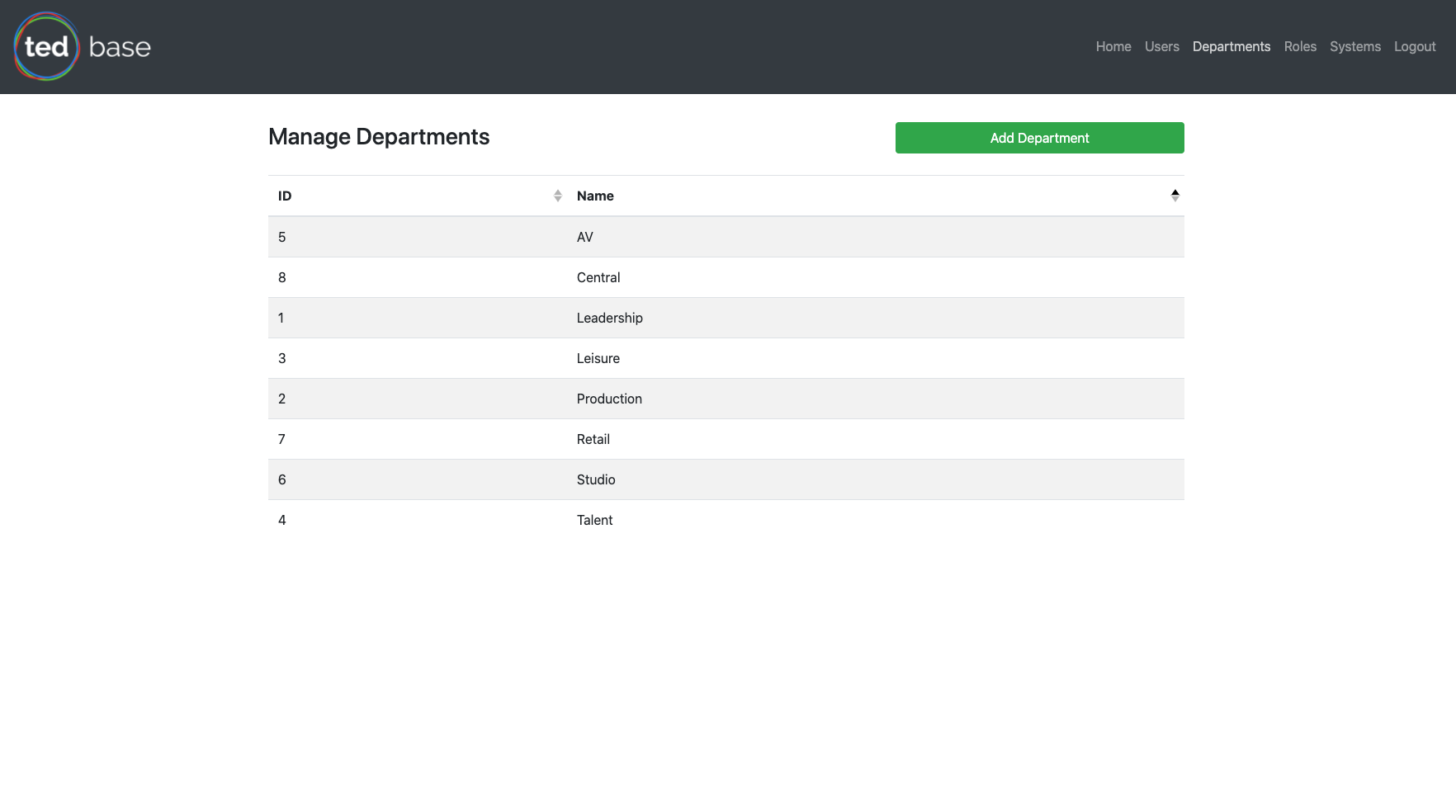
Use the 'Add Department' button or select an existing department to edit
Manage Roles
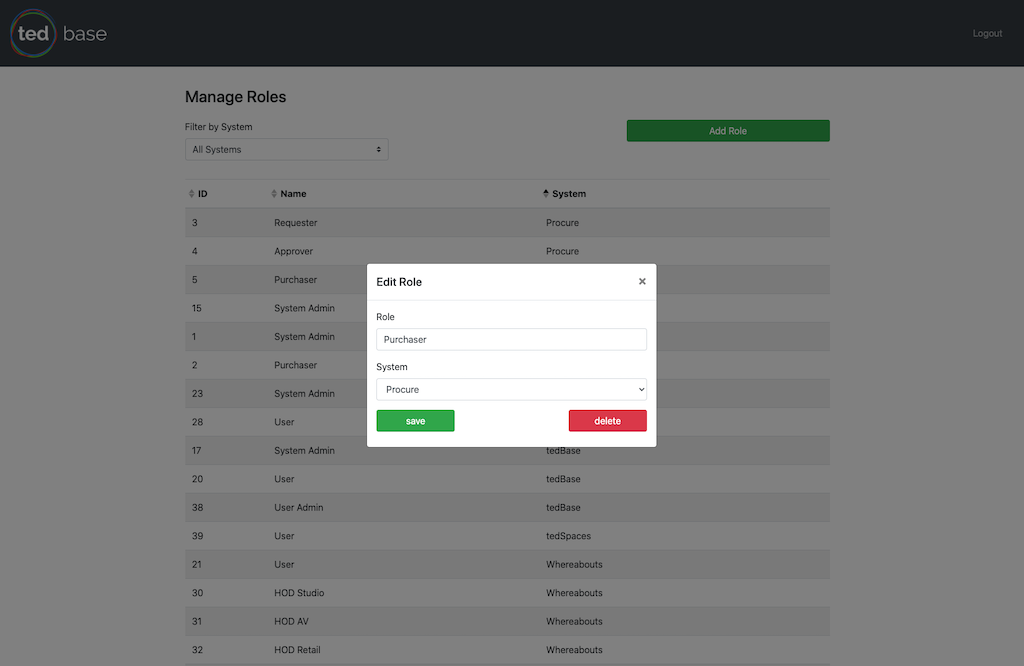
This page allows the management of the tedBase roles used in all systems
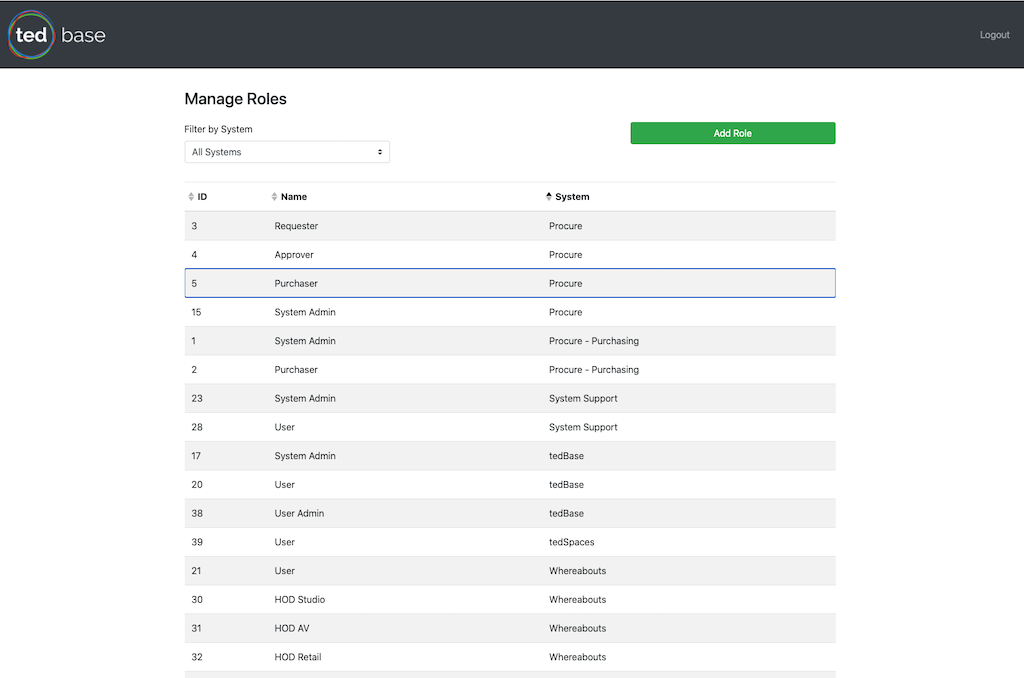
Use the 'Add Role' button or select an existing role to edit
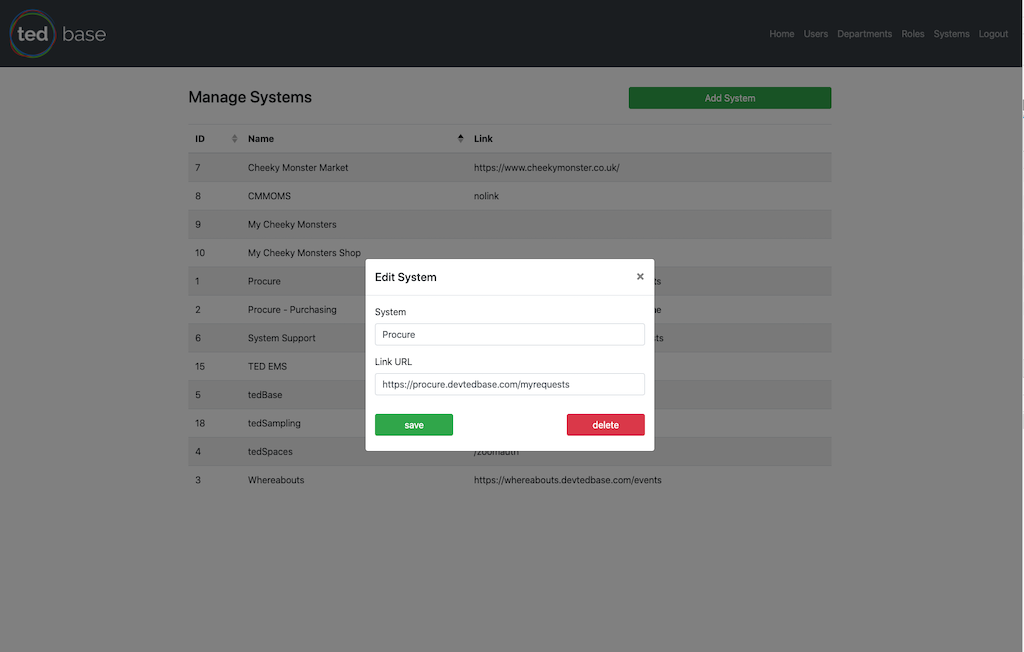
Manage Systems
This page allows the management of all the systems available in tedBase
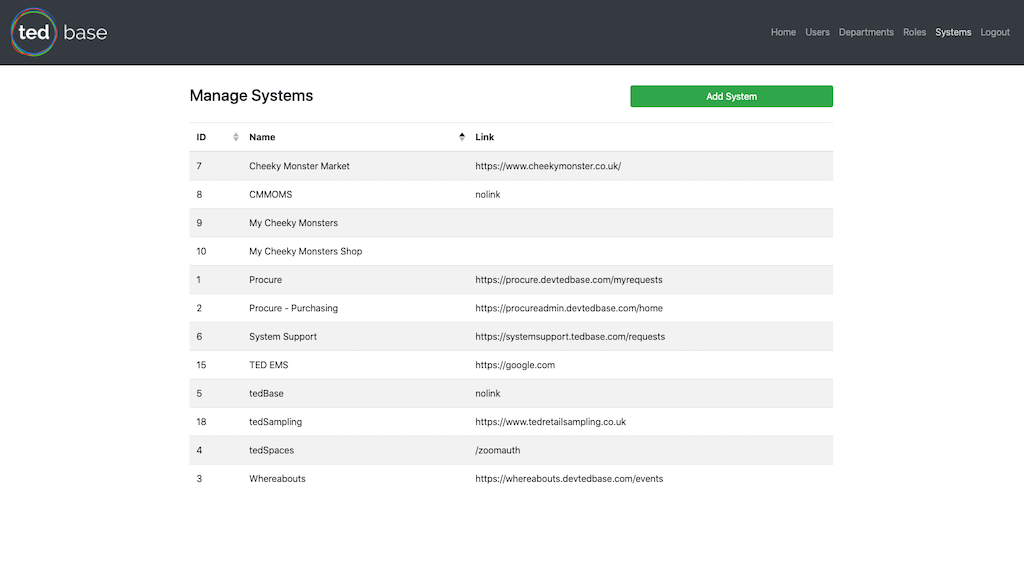
Use the 'Add System' button or select an existing system to edit