tedSpaces - User Guide - V1.1
Jan 2021 Rod Balgarnie
Quick Links
What is tedSpaces
tedSpaces is a Zoom based video chat system consisting of department meeting spaces that are avaialble 24/7.
To access tedSpaces requires the user role of 'tedSpaces - User' assigned.
Creating a Zoom account
To use tedSpaces you need to have created a free user account with Zoom - Signup here
Accessing tedSpaces
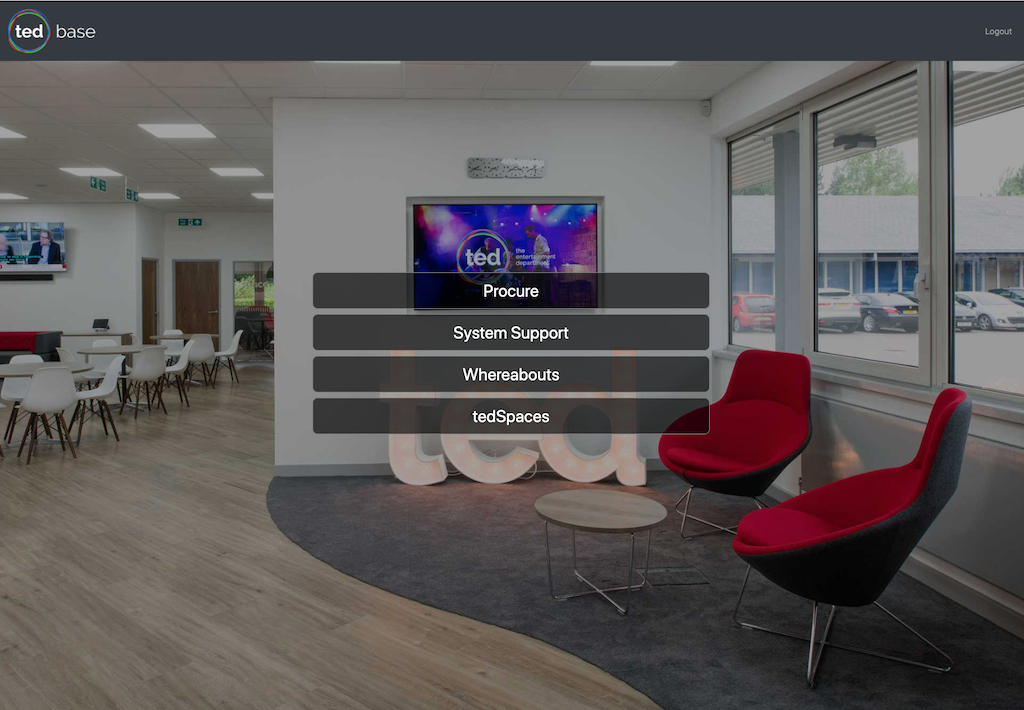
Select tedSpaces from your tedBase home system list.
If you do not have tedSpaces in your list then contact Rod.
Joining a meeting
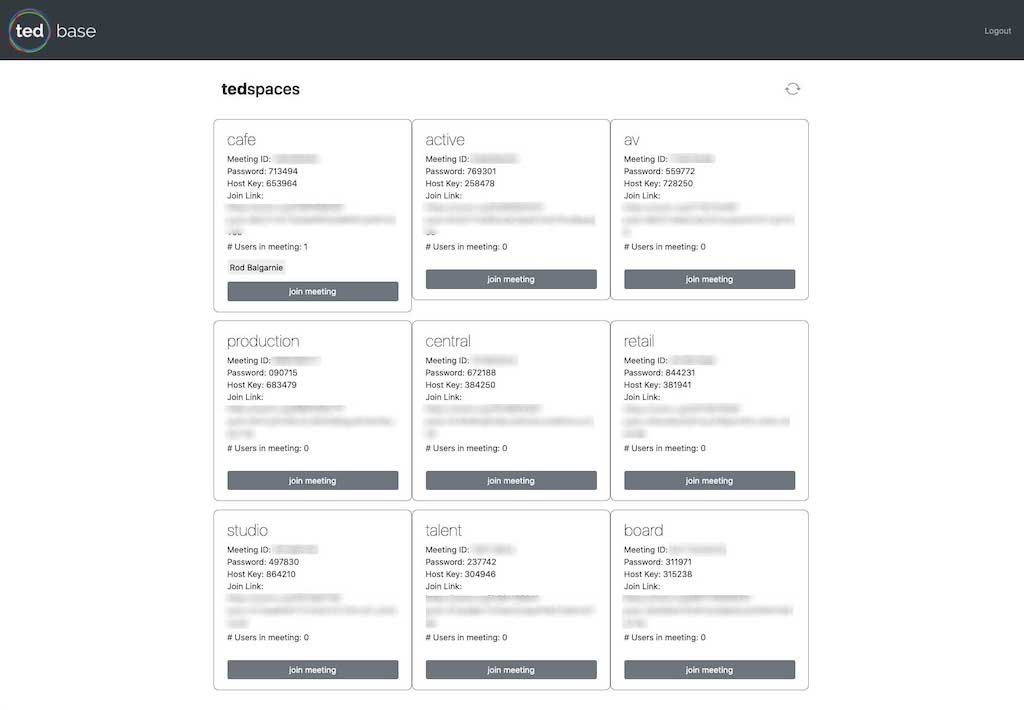
To join a meeting then click the 'Join Meeting' button.
To allow non-ted users to join the meeting then copy the meeting join link and email this
to the user. Alternatively you can invite a user to join your meeting by selecting the 'Invite' button on the participants pane.
Becoming the Host of a meeting
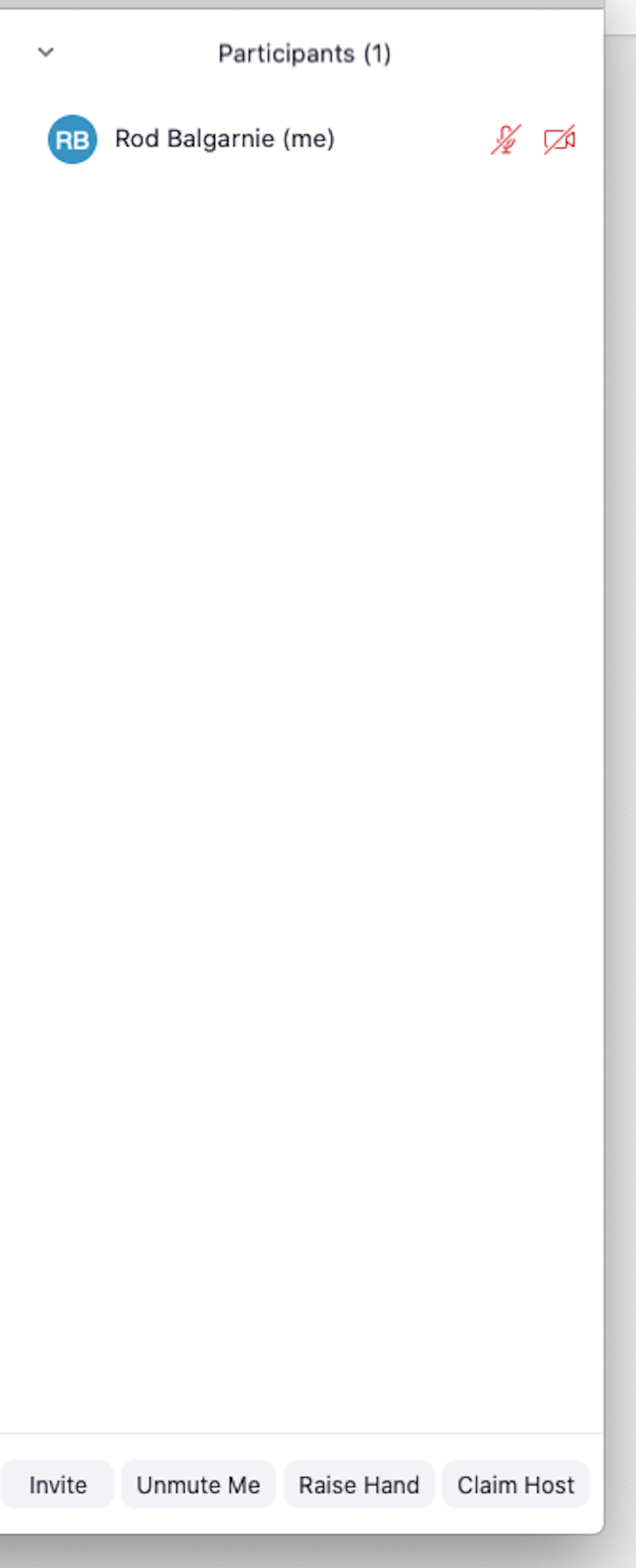
Once you have joined a meeting then select 'Participants' from the bottom menu and then select 'Claim Host' from the bottom of the participants pane. After entering the host key for the meeting you are then able to control the meeting including screen sharing, muting and privacy

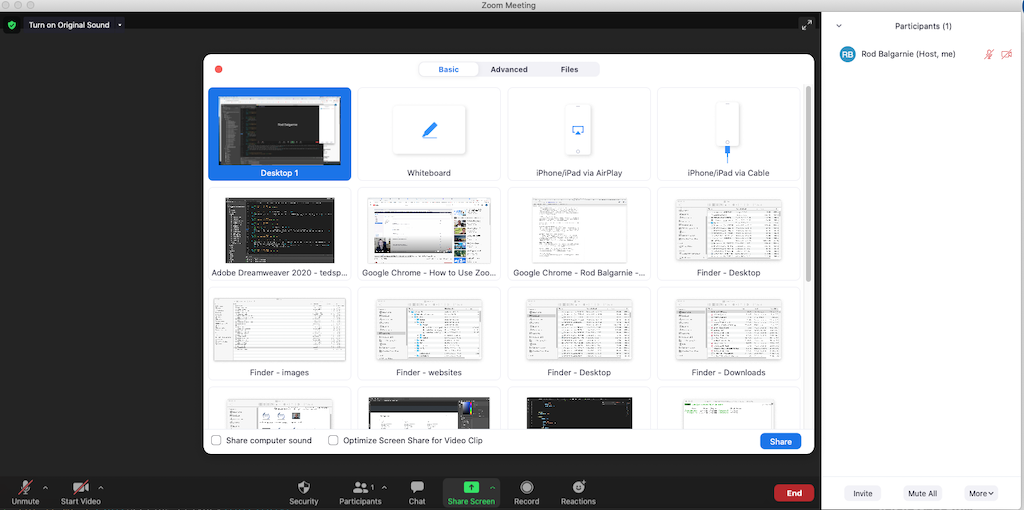
To share your screen with other users in the meeting select the 'Share Screen' button fron the bottom menu and select your desktop
Note: You need to be the host of the meeting to share your screen
Meeting Privacy
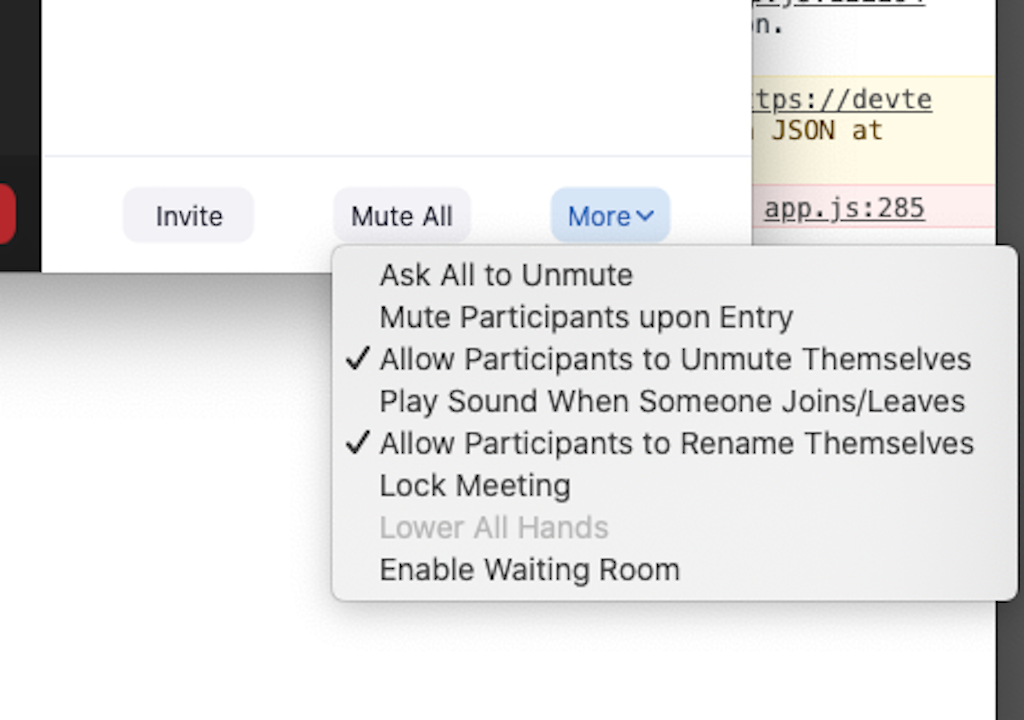
When a meeting starts then anyone can join the meeting. If you want privacy for your meeting then you can either select 'Enable waiting room' or 'Lock meeting' available by selecting 'More' in the participants pane
Note: You need to be the meeting Host to see these options
'Enable wating room' will hold users in the waiting room and alert the host they are waiting before being admitted to the meeting by the host
'Lock Meeting' will stop any other user from joining your meeting
Refreshing Meetings
To update the current state of all meetings including the users in each meeting space then select